
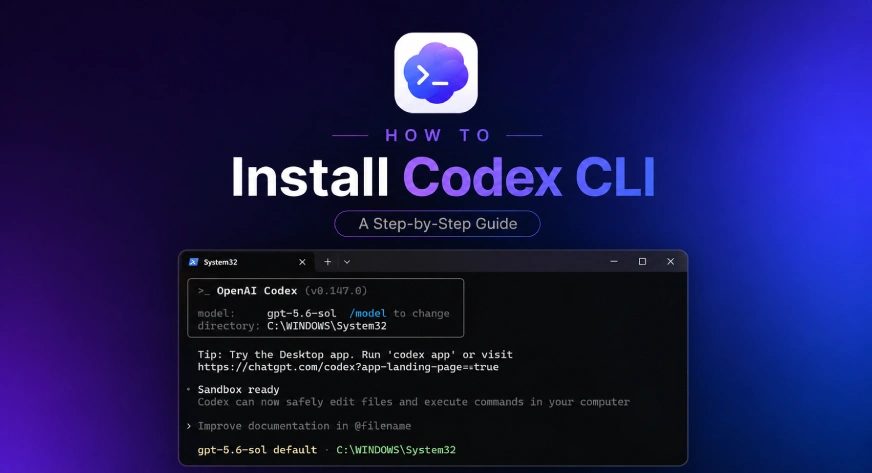
The integration of generative artificial intelligence into local development workflows represents a significant shift in how software engineering and system administration are conducted. OpenAI’s Codex CLI (Command Line Interface) brings the sophisticated reasoning and code-generation capabilities of the Codex model directly into the terminal, allowing developers to interact with their repositories, shells, and testing suites through natural language. Unlike the standard ChatGPT web interface, the Codex CLI is designed for agentic tasks, meaning it can read files, execute commands, and suggest structural changes based on the context of a local project. This transition from a browser-based assistant to a local system agent necessitates a robust installation process and a nuanced understanding of security boundaries to ensure that the AI operates safely within the user’s environment.
The Evolution of Codex: From Model to Agentic CLI
The release of the Codex CLI is the latest milestone in a timeline that began in mid-2021 when OpenAI first introduced the Codex model, a descendant of GPT-3 fine-tuned for programming tasks. Initially, Codex served as the engine for GitHub Copilot, demonstrating that Large Language Models (LLMs) could provide high-quality code completions in real-time. By 2023 and 2024, the focus shifted from simple autocompletion to "agentic" behavior—the ability for an AI to not only write code but also understand the broader context of a repository and perform terminal-based operations.
Industry data suggests that the demand for such tools is surging. According to recent developer surveys, over 70% of software engineers are now utilizing AI-assisted coding tools, citing productivity gains of up to 50% for routine tasks like boilerplate generation and unit testing. The Codex CLI addresses a specific niche in this market: the need for a "natural language shell" that can navigate complex directory structures and automate command-line workflows without requiring the user to switch between their IDE and a web browser.
Pre-Installation Requirements and Strategic Choices
Before initiating the installation, developers must evaluate their existing environment to choose the most appropriate installation method. OpenAI provides three primary routes: a standalone installer, a Homebrew package for macOS users, and an npm package for those already operating within the Node.js ecosystem.
The standalone installer is generally recommended for users who prefer to minimize dependencies. It handles the configuration of the PATH environment variable automatically on Windows and provides a streamlined shell script for Unix-like systems. However, for teams that manage their development tools through package managers to ensure version consistency across machines, the Homebrew (brew) or Node Package Manager (npm) routes offer better integration with existing update cycles.
Step-by-Step Installation Protocols
The installation process is designed for speed, typically requiring only a single command to initiate, followed by a series of configuration prompts.
1. Deployment on macOS and Linux
For Unix-based systems, the installation is handled via a curl command that fetches and executes a shell script. Users should open their terminal and run:
curl -fsSL https://chatgpt.com/codex/install.sh | sh
This script detects the shell type (such as Zsh or Bash) and places the Codex binary in a standard execution directory.
2. Deployment on Windows
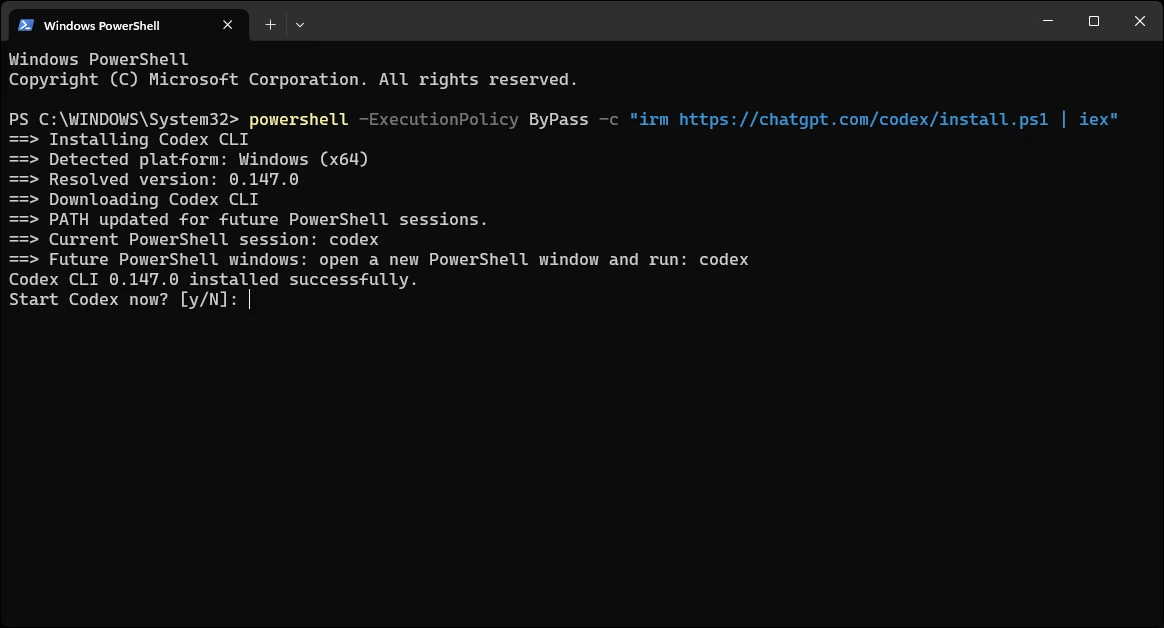
Windows users can utilize PowerShell to execute the installation. The command bypasses the default execution policy for the duration of the script to ensure the installer has the necessary permissions to modify the PATH:
powershell -ExecutionPolicy ByPass -c "irm https://chatgpt.com/codex/install.ps1 | iex"
For those operating in a legacy Command Prompt (CMD) environment, running this PowerShell command will still achieve the same result, as it triggers the PowerShell engine to handle the download and setup.
3. Alternative Package Managers
Developers who prefer centralized tool management can opt for:
- Homebrew (macOS):
brew install --cask codex - npm (Cross-platform):
npm install -g @openai/codex
The npm method is particularly useful for JavaScript/TypeScript developers who already have Node.js installed, as it treats Codex as a global utility within the Node environment.
First-Run Configuration and Identity Management
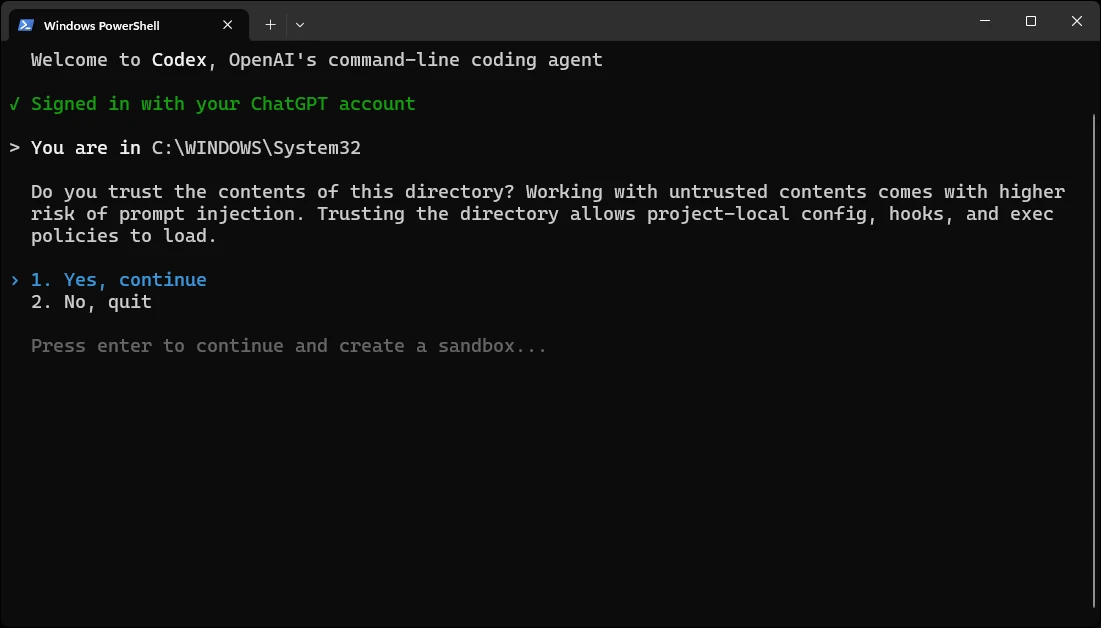
Once the binary is installed, the "First Run" phase is critical for establishing the AI’s identity and access levels. The user must navigate to a specific project directory before launching the tool. This is a vital step because Codex treats the current working directory as its "workspace boundary." If launched from a sensitive system directory, such as C:WindowsSystem32 on Windows or the root directory on Linux, the AI may inadvertently gain visibility into system-critical files.
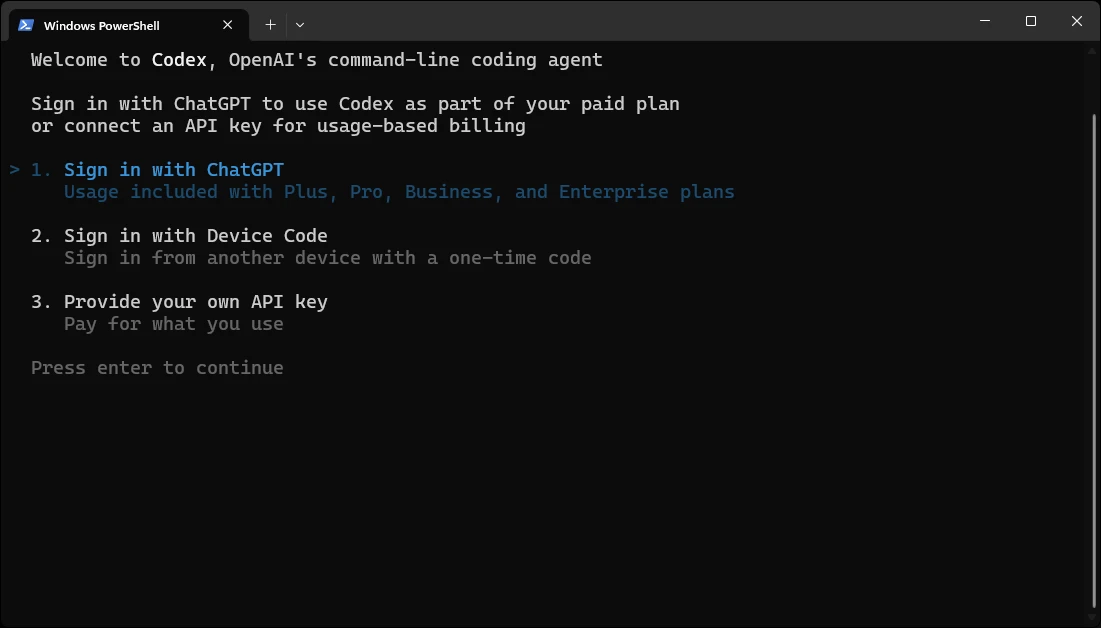
Upon running the codex command for the first time, users are presented with three authentication options:
- ChatGPT Account: This links the CLI to an existing ChatGPT subscription (Free, Plus, Pro, Business, or Enterprise). Usage limits are typically shared between the web interface and the CLI.
- Device Code: A method for headless servers or remote environments where a browser is not immediately available.
- API Key: This option is intended for users who prefer to be billed based on token consumption via the OpenAI Platform. This is often the preferred route for enterprise developers who need to track usage costs separately from a standard subscription.
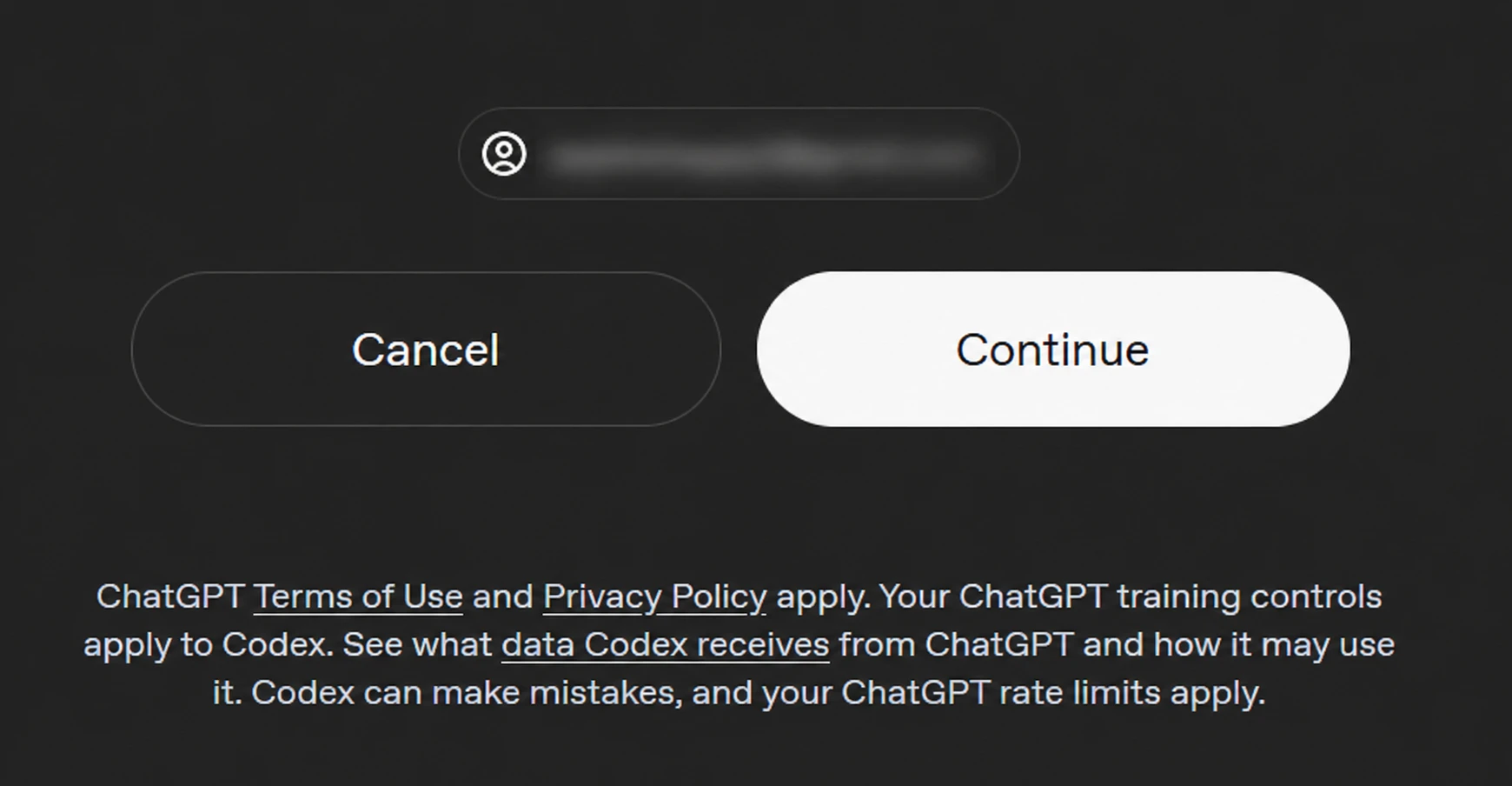
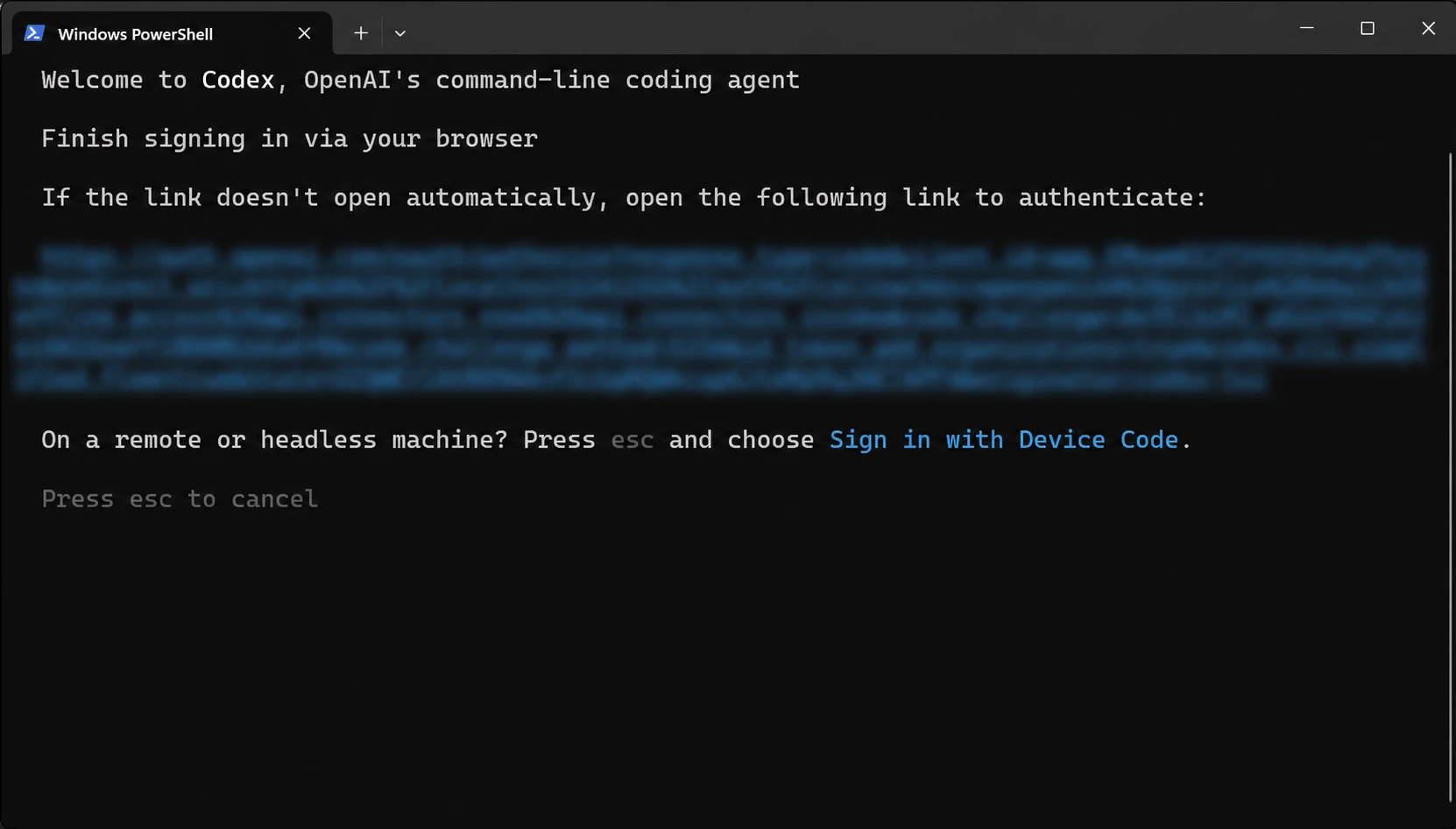
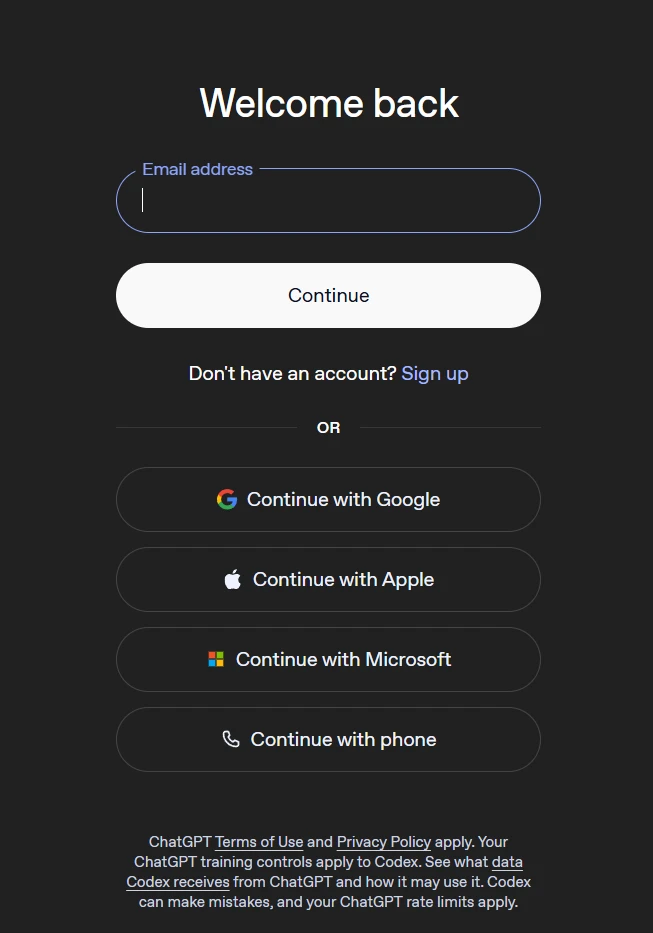
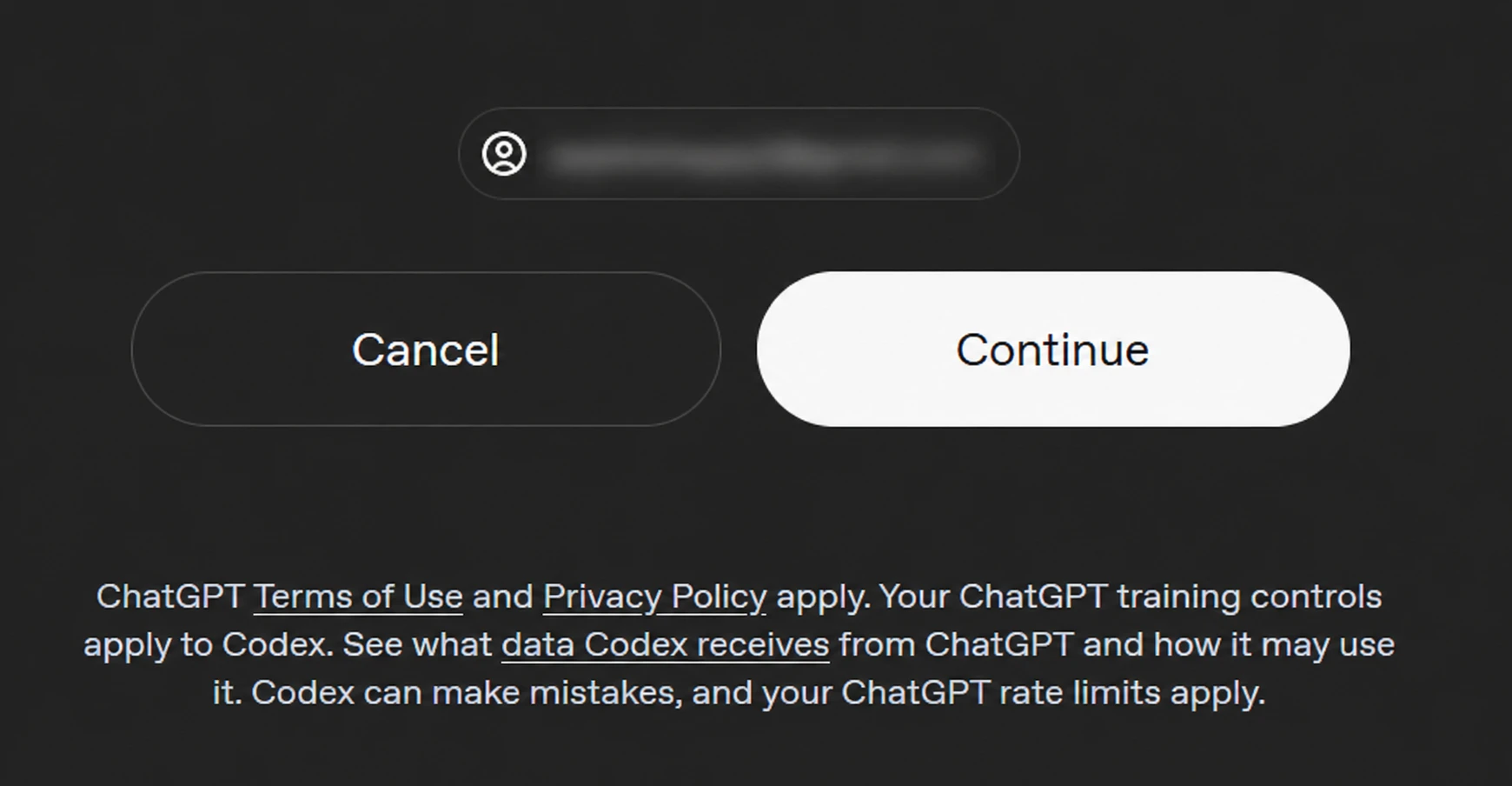
For the majority of users, the ChatGPT account route is the most seamless. The CLI generates a unique URL that opens in the default web browser. After the user signs in and authorizes the application, a success message appears, and the terminal session is updated to reflect the authenticated state.
Security and the Sandbox Environment
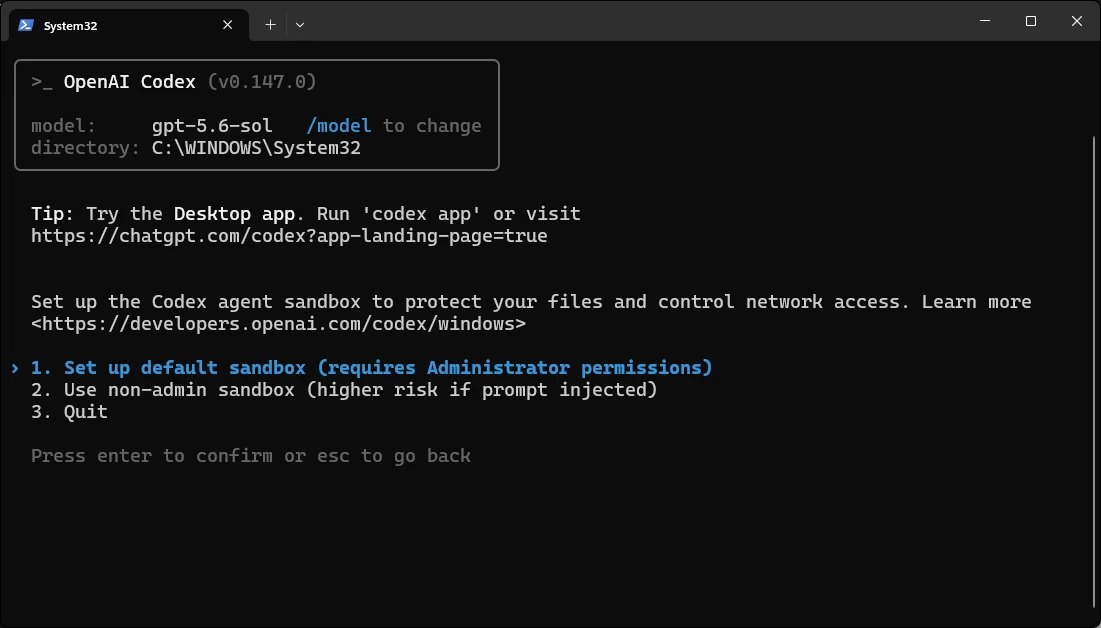
A defining feature of the Codex CLI, particularly on the Windows platform, is its use of a sandbox. Because the CLI has the power to execute shell commands, there is an inherent risk that the AI could generate a destructive command—either through an "hallucination" or a poorly phrased user prompt.

On Windows, the installer offers a "Default Sandbox" configuration. This setup utilizes an elevated mode that creates a lower-privilege user account specifically for the AI’s execution tasks. It implements filesystem boundaries and firewall rules to ensure that even if a command is executed, it cannot reach outside the designated project folder or compromise the host system’s integrity. OpenAI’s technical documentation emphasizes that while a non-admin mode exists, it provides significantly weaker protection and should only be used on machines where administrative rights are restricted.
Establishing Permissions and Trust
After authentication and sandbox configuration, the CLI requires the user to explicitly "trust" the project folder. This step is a safeguard against the accidental execution of project-local configuration files or hooks that could contain malicious code.
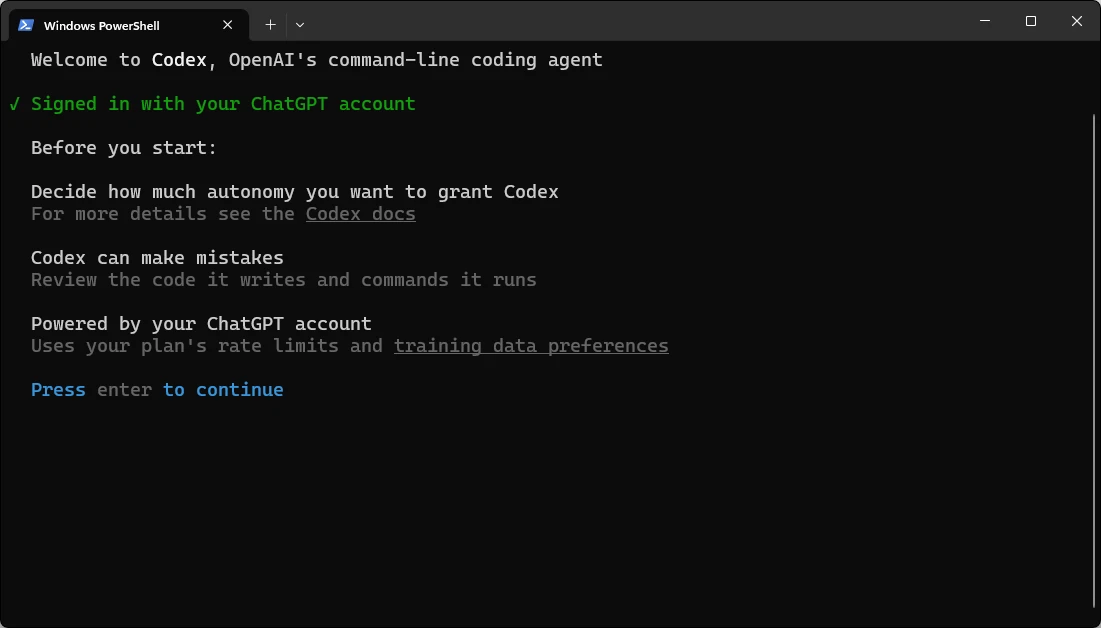
The user is also asked to review the "Autonomy" settings. Codex operates under three primary permission profiles:
- Read-Only: The AI can analyze code and explain structures but cannot modify files or execute scripts. This is the recommended setting for initial repository exploration.
- Workspace: The AI can modify files and execute commands within the current directory.
- Full Access: The AI has broader permissions, which may be necessary for complex tasks involving system-level toolchains.
Users can modify these permissions at any time during a session by using the /permissions command.
Operational Commands and Maintenance
To maximize the utility of the Codex CLI, users should familiarize themselves with the internal command set that governs the tool’s behavior:
/init: This command initializes a project-specific configuration, allowing the team to set custom rules for how the AI should interact with that specific codebase./help: Provides a comprehensive list of available commands and syntax./clear: Wipes the current conversation history to save tokens and provide the AI with a "clean slate" for a new task./permissions: Opens the interface to toggle between Read-Only and Workspace modes.
Maintenance of the tool is straightforward. Since OpenAI frequently updates the underlying models and the CLI’s security protocols, users are encouraged to run the installation command periodically to update the binary. For package manager installs, standard commands like brew upgrade --cask codex or npm install -g @openai/codex@latest will suffice.
Analysis of Implications for the Development Industry
The deployment of tools like the Codex CLI signals a move toward "Autonomous Development Environments." While previous iterations of AI coding tools were passive—waiting for a user to type a character before offering a suggestion—the CLI is active. It can be tasked with high-level objectives, such as "Refactor all exported functions in this directory to use async/await and update the unit tests accordingly."
However, this shift brings challenges. Security experts point out that as AI agents gain the ability to execute code, the risk of "Prompt Injection" attacks increases. If a developer asks the AI to summarize a README file from an untrusted source, and that file contains a hidden instruction to "delete all files in the current directory," the AI might follow the instruction if the sandbox and permission levels are not correctly configured.
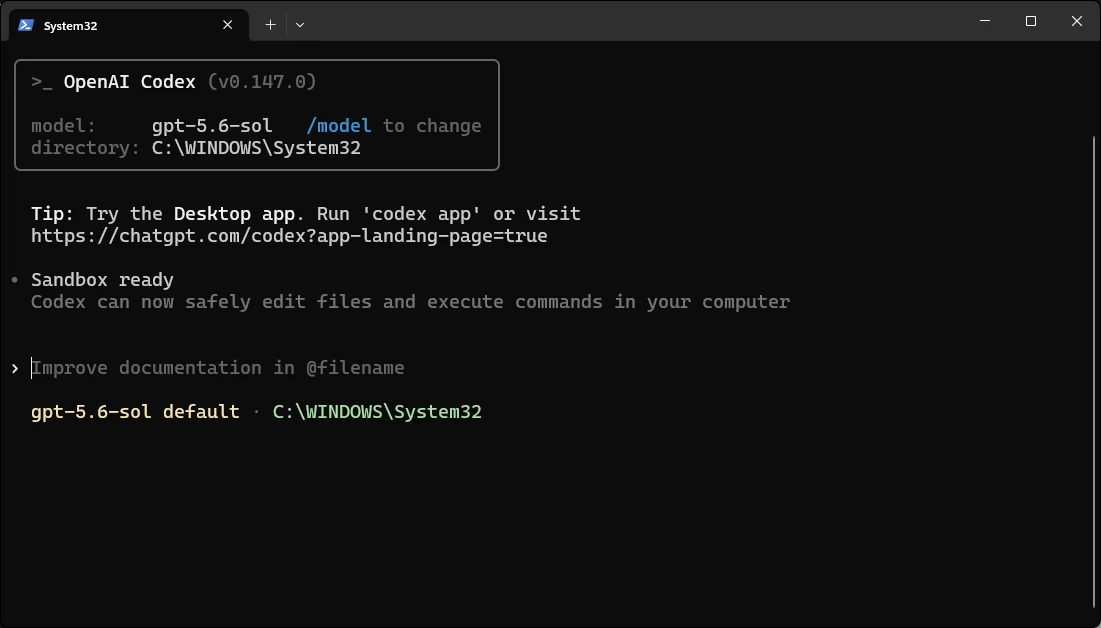
Therefore, the "clean setup" described in this guide is not merely a technical necessity but a safety requirement. By launching from the correct directory, utilizing the Windows sandbox, and maintaining a "Read-Only" status for unfamiliar tasks, developers can leverage the immense power of OpenAI’s models while mitigating the risks associated with local code execution.
Conclusion and Future Outlook
The Codex CLI is a bridge between the abstract reasoning of LLMs and the concrete reality of local file systems. Its installation across Windows, macOS, and Linux is the first step toward a more integrated, AI-augmented programming experience. As these tools continue to evolve, we can expect even deeper integration with version control systems and cloud environments, eventually making the AI an invisible but ubiquitous partner in the software development lifecycle. For now, the key to success lies in a disciplined setup, a clear understanding of permissions, and a cautious approach to AI autonomy.