
Every WooCommerce order confirmation email serves as far more than a mere receipt; it is a pivotal touchpoint in the customer journey, confirming payment, sharing vital order details, and intrinsically building trust from the very first post-purchase interaction. In an increasingly competitive digital marketplace, these automated messages have evolved from simple transactional notifications into strategic tools for customer retention and revenue generation, profoundly influencing post-purchase perception and laying the groundwork for future engagements.
Automated emails, including order confirmations, demonstrated an average open rate of 38% in 2025, according to industry reports. This figure underscores their critical importance within the transactional email category, where their timely and expected nature ensures exceptionally high engagement. Given their near-universal open rates, every order confirmation email sent through WooCommerce represents a golden opportunity to alleviate post-purchase anxiety, reinforce brand loyalty, and subtly encourage repeat purchases. While WooCommerce provides foundational email tools by default, their customization capabilities remain inherently limited. Dedicated platforms like Omnisend aim to bridge this gap, offering enhanced personalization, sophisticated automation campaigns, and robust features designed to significantly boost repeat sales.
The Evolving Landscape of Post-Purchase Communication
The journey of e-commerce communication has seen a dramatic shift. Initially, order confirmations were utilitarian, bare-bones messages designed solely to confirm a transaction. However, as online shopping became ubiquitous, customer expectations soared. Shoppers now anticipate not only clear confirmation but also a branded, reassuring, and informative experience that extends beyond the checkout page. The data reflects this shift: automated emails generated a remarkable 30% of all email-driven revenue from just 2% of the total email volume in 2025. Furthermore, their conversion efficiency is unparalleled, with nearly one in three clicks on an automated email leading to a purchase, a stark contrast to scheduled marketing campaigns where conversion rates from clicks are notably lower. This highlights the immense, often untapped, potential of transactional emails to drive tangible business outcomes. The Omnisend 2026 Ecommerce Marketing Report provides further insights into these trends, emphasizing the strategic advantage gained by optimizing these crucial communications.
Navigating WooCommerce’s Built-in Email System
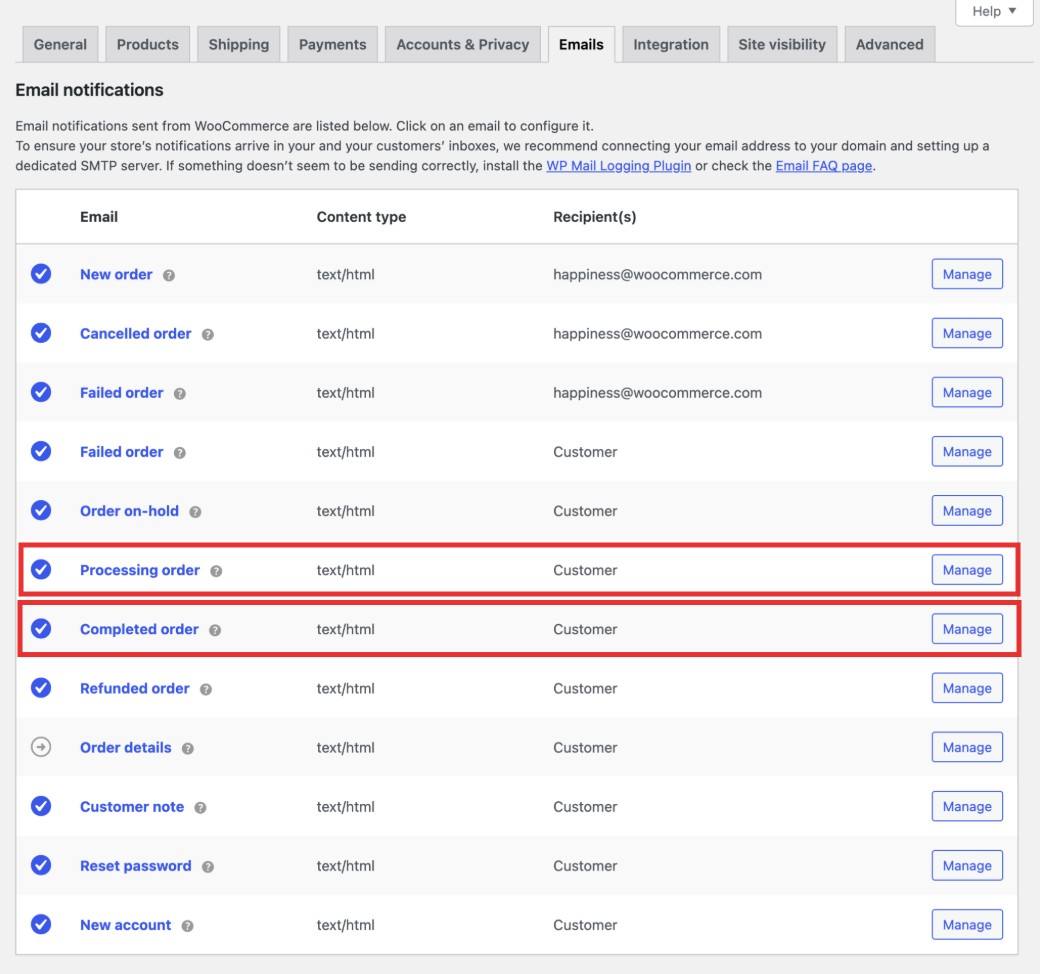
WooCommerce’s default functionality for sending order confirmation emails centers around its “Processing order” email. This message is automatically dispatched once payment clears, requiring no additional plugins or complex setup. It serves as the primary confirmation to the customer that their order has been successfully placed and is being prepared. It’s crucial to distinguish this from the “Completed order” email, which is a separate notification sent when an order is marked as fulfilled or shipped, often including tracking information.
The process for configuring these emails within WooCommerce is straightforward:
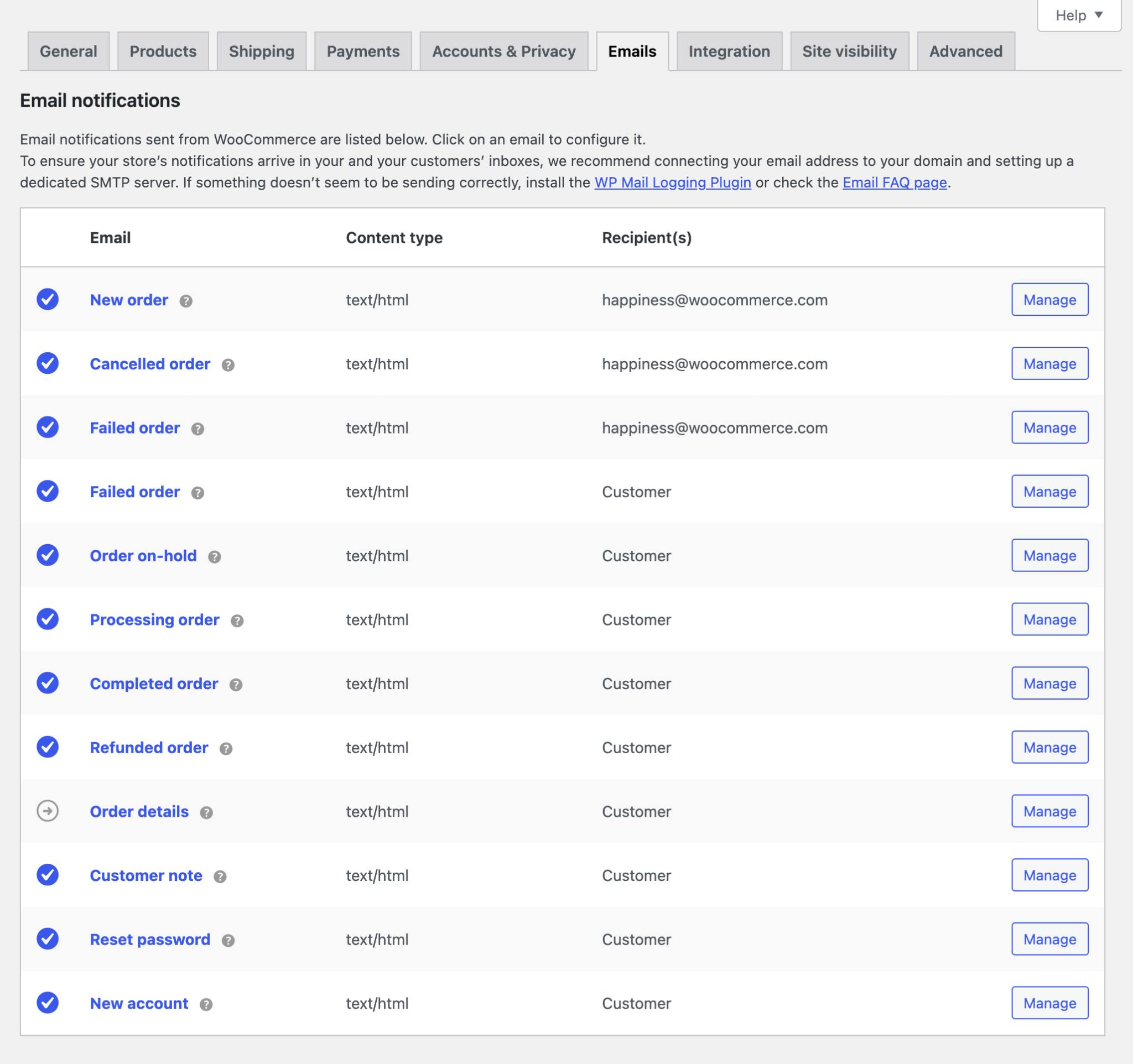
- Access Email Controls: Navigate to your WordPress dashboard, then WooCommerce > Settings > Emails. This section lists all the default email notifications managed by the platform.
- Enable Confirmation Email: Locate the “Processing order” email in the list and click “Manage.” Ensure the “Enable this email notification” checkbox is ticked. An unchecked box is a frequent cause of missing confirmation emails. It’s important to remember that WooCommerce only sends confirmations for orders with a “Processing” status, meaning payment has been received; orders stuck in “Pending payment” will not trigger this email.
- Customize Content: Within the “Processing order” email settings, merchants can tailor the content. This includes modifying the Subject line, the Email heading, and adding custom text in the Additional content box. The default subject, “Your site_title order has been received!”, is functional but generic. Personalizing it with elements like “customer_first_name” (e.g., “Thanks for your order, customer_first_name! Your purchase is confirmed.”) can significantly enhance the customer experience. The “Additional content” section is ideal for friendly notes, links to support, store policies, or even a subtle call to action for social media engagement. WooCommerce supports various placeholders (e.g., order_total) to dynamically insert order-specific details, making each email feel bespoke. A built-in preview feature allows merchants to visualize changes before saving.
- Set Up Admin Notifications: Beyond customer emails, administrators also require timely notifications. The “New order” email (found under the main “Emails” tab) is crucial for alerting store owners and their teams to new purchases. Merchants can specify multiple recipient email addresses, separated by commas, ensuring all relevant staff are informed. Customizing the subject line (e.g., “[Store Name] New Order: order_number”) helps streamline internal order management.
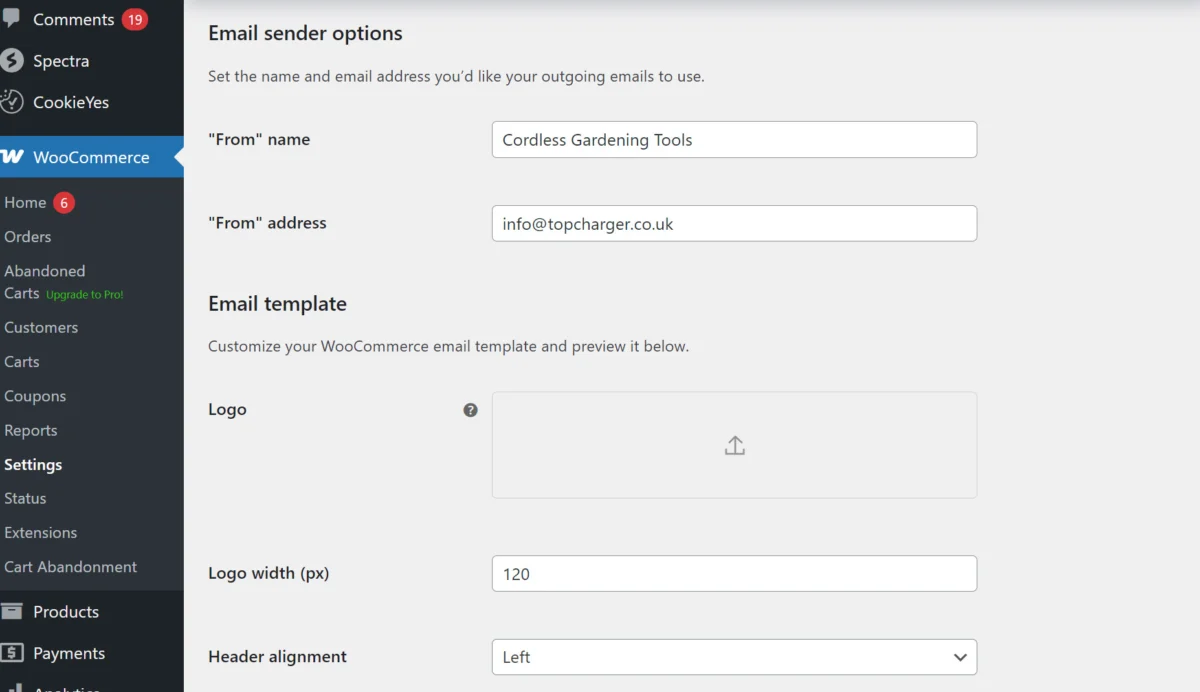
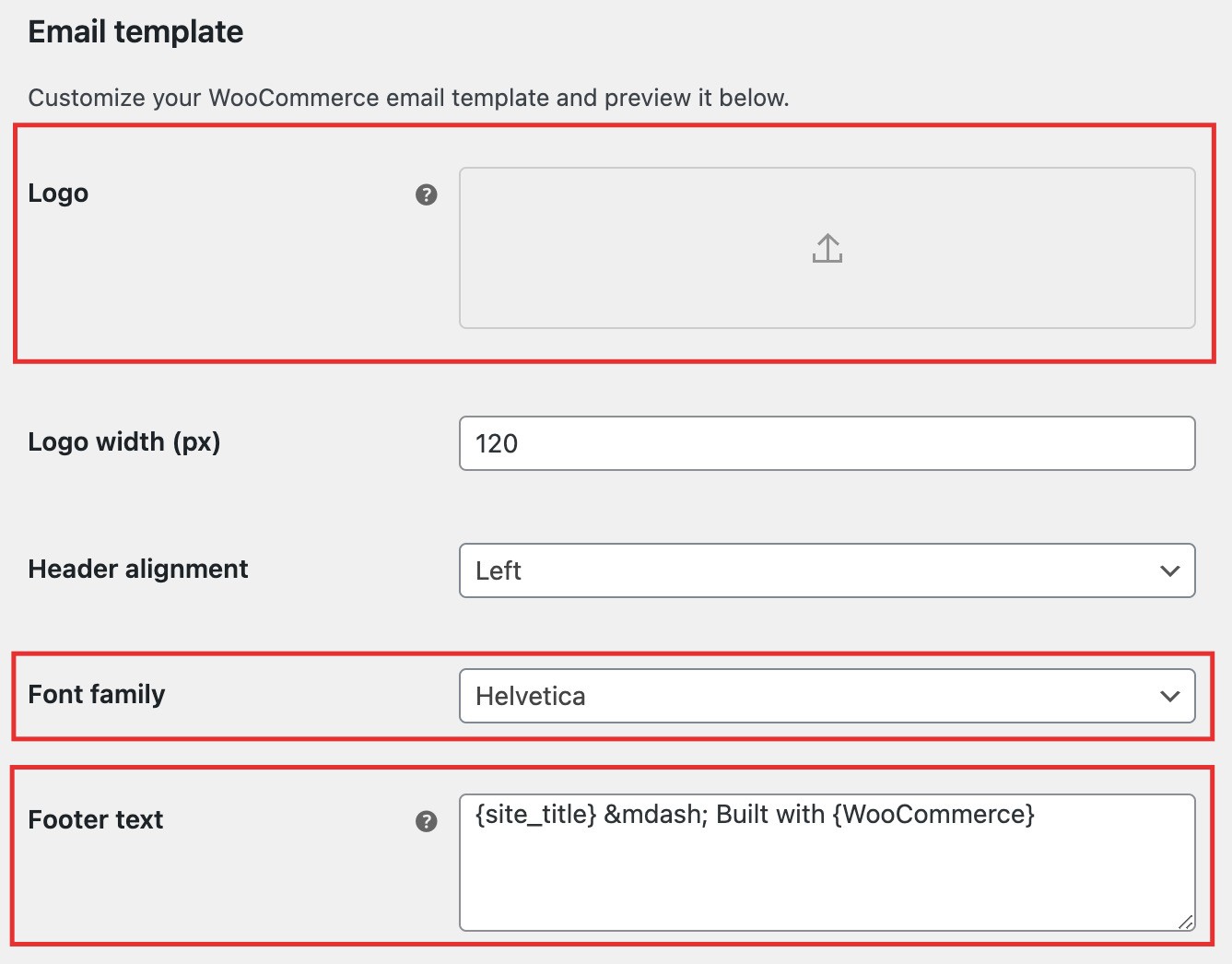
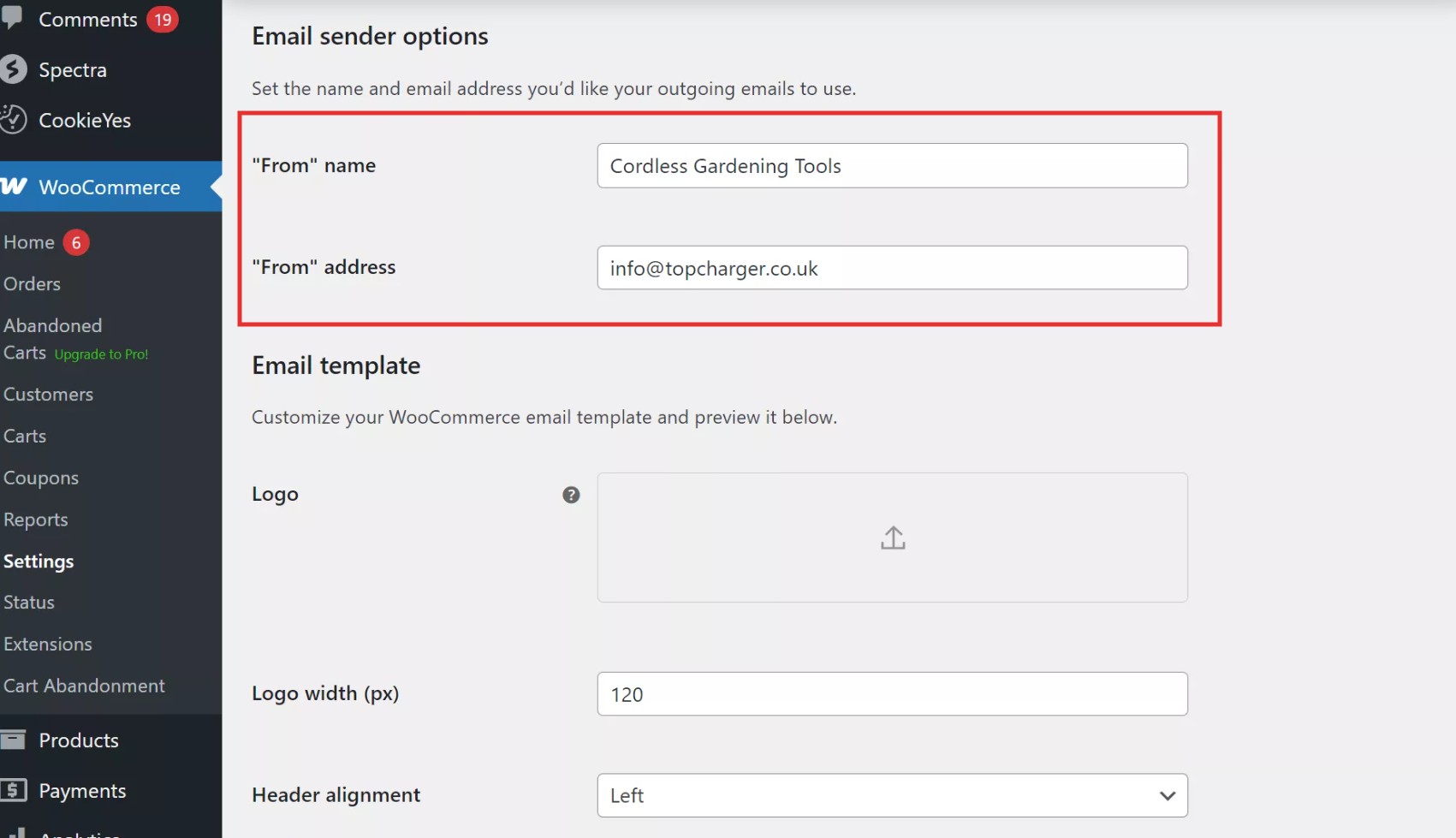
- Configure Global Email Settings: Further down the “Emails” settings page, the “Email sender options” section allows for global configuration affecting all WooCommerce emails. This includes setting the “From” name (e.g., “Awesome Store Team”) and, critically, the “From” address (e.g., [email protected]). Using a domain-based email address is paramount for deliverability, as emails from generic addresses (like Gmail or Yahoo) are often flagged as spam. The Email template section allows for basic branding, such as adding a store logo, adjusting the color scheme (background, body, text, link colors), and customizing the Footer text with contact information or social links. WooCommerce 9.8 (released April 2025) introduced an expanded color palette, broader font selection, and live email preview enhancements, reflecting an ongoing effort to improve native customization.
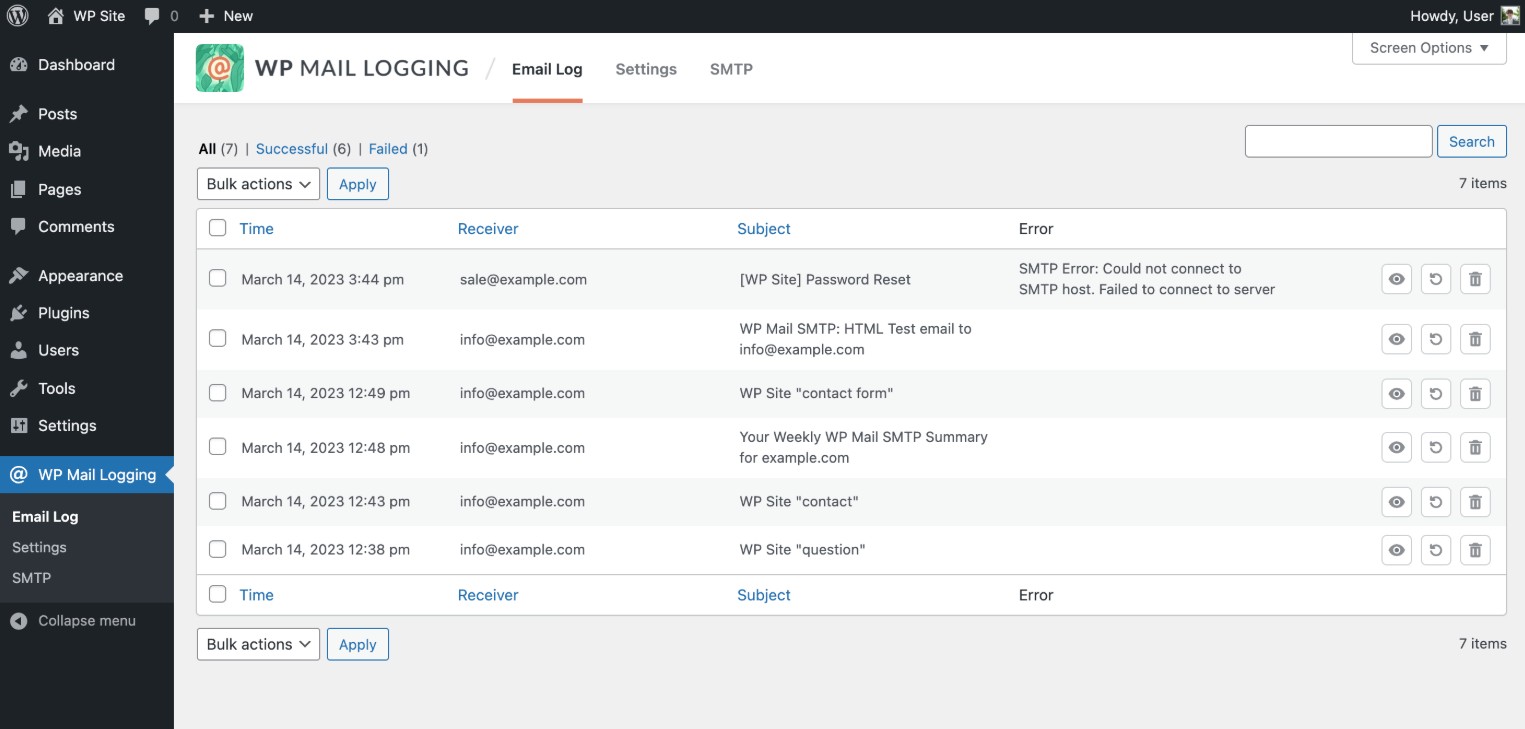
- Test Emails: After configuring all settings, rigorous testing is indispensable. Simulating a purchase (using a test product or coupon) allows merchants to verify that both the customer confirmation and admin notifications are received as expected. If emails fail to arrive, a mail logging plugin like WP Mail Logging can diagnose whether emails are being generated but not delivered, often pointing to server-side deliverability issues.
The Delivery Problem: WooCommerce’s Core Limitation
One of the most significant inherent limitations of WooCommerce’s default email system lies in its reliance on the web server’s PHP mail function. This method, while simple, is notoriously unreliable for several reasons. Shared hosting environments, common for many small to medium-sized businesses, frequently block or throttle emails sent via PHP mail to prevent spam and server overload. More critically, emails sent through this method often lack proper authentication protocols (like SPF, DKIM, and DMARC records), making them highly susceptible to being flagged as spam by recipient email providers. This “delivery problem” means that even perfectly crafted confirmation emails might never reach the customer’s inbox, leading to frustration, increased support inquiries, and a damaged brand reputation.
Beyond the Basics: Customization Pathways
For merchants seeking more than WooCommerce’s basic functionality, several avenues exist to enhance order confirmation emails:
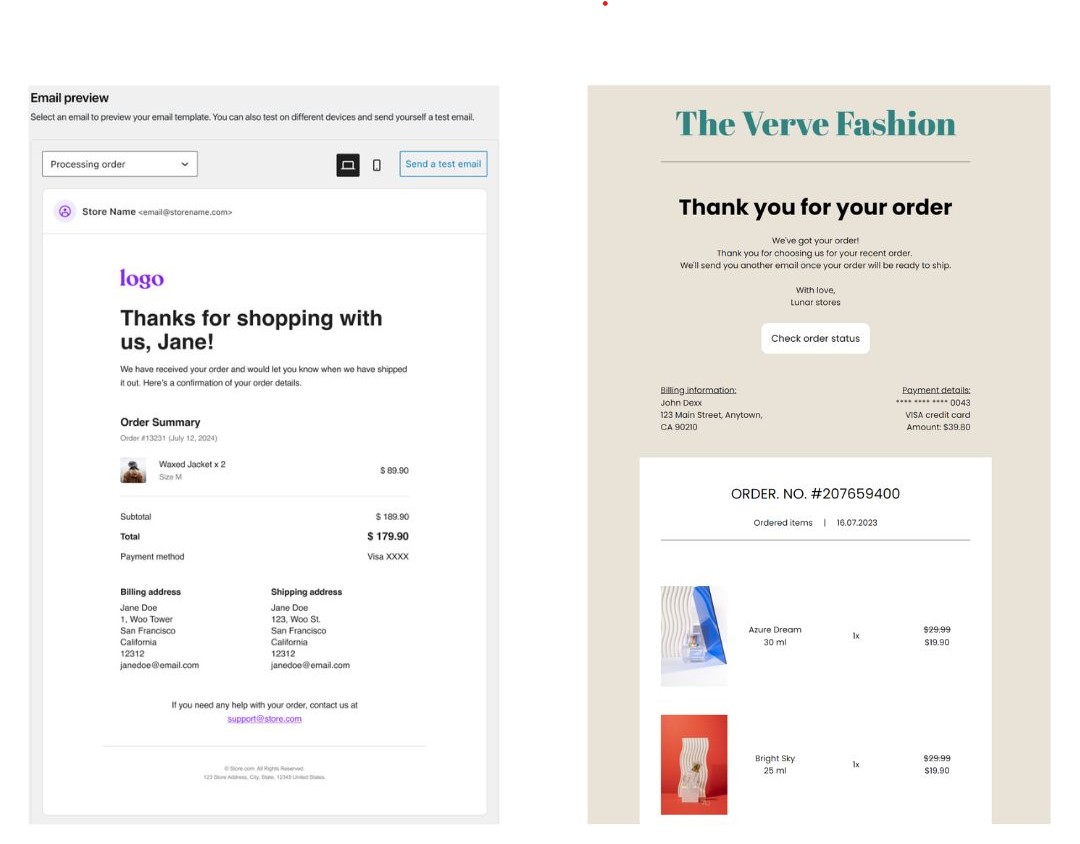
- WooCommerce’s Built-in Email Settings: As detailed above, these offer foundational control over subject lines, headings, and additional content, along with global styling for branding. However, they lack dynamic content, advanced layout options, or integrated analytics.
- Email Customizer Plugins: For greater design flexibility without coding, plugins like YayMail – WooCommerce Email Customizer or Kadence WooCommerce Email Designer offer drag-and-drop interfaces. These tools enable merchants to add custom blocks, integrate dynamic elements (like “Track your order” buttons), and reorganize layouts. This approach suits businesses prioritizing visual design and ease of use over deep automation or advanced segmentation.
- Code-Based Customization: The most granular control is achieved through direct code modification. This involves copying template files (e.g.,
customer-processing-order.php) into a child theme’swoocommerce/emails/folder and using WooCommerce hooks to inject custom content or alter layouts safely. This method demands developer expertise and careful testing on staging sites to prevent breaking the live store. While powerful, it’s resource-intensive and not suitable for non-technical users. - Dedicated Email Marketing Platforms: For a comprehensive, scalable, and marketing-centric approach, dedicated email marketing platforms like Omnisend, Mailchimp, or Klaviyo offer the most robust solution. These platforms replace WooCommerce’s entire email sending infrastructure, providing:
- Advanced Design Capabilities: Intuitive drag-and-drop builders for creating visually stunning, branded emails.
- Behavioral Automation: Beyond simple order confirmations, these platforms enable complex workflows for abandoned carts, win-back campaigns, post-purchase follow-ups, and more.
- Enhanced Deliverability: Emails are routed through optimized servers with proper authentication, significantly improving inbox placement.
- Segmentation and Personalization: Leverage customer data, purchase history, and browsing behavior for highly targeted messaging.
- Analytics and A/B Testing: Gain insights into email performance and optimize campaigns through testing.
Optimizing Order Confirmations with Omnisend
For WooCommerce stores aiming to transform transactional emails into powerful revenue drivers, Omnisend offers a seamless and feature-rich integration. It replaces basic WooCommerce emails with automated, branded messages that can include dynamic order details, personalized product recommendations, and professional designs, all without requiring any coding expertise.
The process of implementing Omnisend for WooCommerce order confirmations involves these key steps:
- Install Integration Plugin: Begin by installing the Omnisend WooCommerce integration plugin, which syncs your store data with the Omnisend platform.
- Access Workflow Builder: Log into Omnisend, navigate to the “Automation” section, and click “+ Create workflow.” Omnisend provides pre-built templates, including an “Order Confirmation” workflow. Selecting and customizing this template launches the visual workflow builder, pre-populated with an “Order Placed” trigger and a configurable email block. Omnisend’s workflow builder is enhanced with predictive AI for customer segmentation and generative AI for crafting engaging copy, coupled with award-winning 24/7 customer support since 2022.
- Configure Email Settings: Within the workflow, click on the email block to configure its settings. This includes crafting a compelling Subject line (e.g., “Order #order_number confirmed – thank you, first_name!”), an engaging Preheader text (e.g., “Your order is on its way – track it here and enjoy 15% off next time.”), setting the Sender’s name (your brand name), and specifying a Sender’s email (your domain-based address for optimal deliverability). Omnisend manages the necessary authentication once your domain is verified.
- Design Confirmation Email: Omnisend’s drag-and-drop editor allows for extensive customization of the email’s visual elements. Merchants can upload their logo, adjust colors and fonts to match brand guidelines, and modify text. Crucially, Omnisend enables the easy inclusion of product recommendation blocks, a feature typically absent from default WooCommerce emails without custom coding. This allows for strategic upsells or cross-sells directly within the confirmation, showcasing items similar to the customer’s purchase. A live preview and “Send test email” function facilitate thorough review.
- Add Advanced Features: Omnisend workflows extend beyond a single email. Merchants can enhance their order confirmation automation by adding delays, SMS messages for critical updates (like shipping notifications), or conditional splits to segment customers based on purchase value or product type. For instance, a follow-up email triggered after delivery, encouraging reviews or offering a discount on a next purchase, can significantly boost engagement and repeat sales.
- Disable WooCommerce Default Email: To prevent duplicate communications and ensure Omnisend handles all order confirmations, it’s essential to disable WooCommerce’s native “Processing order” email. This is done by navigating back to WooCommerce > Settings > Emails, managing the “Processing order” email, and unchecking the “Enable this email notification” box. This ensures consistent branding and leverages Omnisend’s superior deliverability infrastructure.
- Test and Launch: The final step involves placing a new test order through your WooCommerce store to verify that the Omnisend workflow triggers correctly, the email arrives in the customer’s inbox, and the design renders perfectly across devices. Omnisend provides detailed automation logs and reporting dashboards, offering valuable analytics on open rates, click rates, and conversions – a significant advantage over WooCommerce’s lack of native tracking.
Essential Elements for an Effective Confirmation Email
An effective WooCommerce order confirmation email must achieve several objectives: confirm the purchase, address common post-purchase queries, and reassure the customer. Key elements include:
- Clear Subject Line: Instantly communicates the email’s purpose.
- Personalized Greeting: Addresses the customer by name, fostering a personal connection.
- Order Number: A prominent, easy-to-find identifier for reference.
- Order Summary: A detailed list of purchased items, including product names, quantities, and individual prices.
- Total Cost and Payment Method: Transparency regarding the amount paid and how it was processed.
- Billing and Shipping Addresses: Confirmation of where the order is being sent and the billing details.
- Estimated Delivery Date/Shipping Information: Manages expectations and provides clarity on when the order will arrive, ideally with a tracking link.
- Customer Service Contact: Clear channels for support, reducing anxiety.
- Call-to-Action (Optional but Recommended): Links to view order status, FAQs, or track shipment.
- Brand Reinforcement: Incorporating your logo, brand colors, and a friendly tone.
As WordPress expert Ferdy Korpershoek aptly notes, WooCommerce’s default confirmation emails “do not look that good” and are challenging to adjust, often appearing as “boring purple emails with a few standard sentences.” This expert observation reinforces the necessity for tools like Omnisend to craft professional, customer-friendly designs that elevate the brand experience.
Troubleshooting: When Emails Go Astray
When WooCommerce order confirmation emails fail to send, it creates immediate customer dissatisfaction and operational headaches. Common culprits include:
- Email Notification Disabled: The “Processing order” email might be inadvertently disabled in WooCommerce settings.
- Spam Filters: Emails might be caught by spam filters, particularly if sent from generic addresses or without proper authentication.
- Incorrect Recipient Email: The customer’s email address might be incorrect or contain typos.
- Order Status: The order might be stuck in “Pending payment” or another status that doesn’t trigger the confirmation.
- Plugin/Theme Conflicts: Other plugins or the active theme might interfere with WooCommerce’s email sending functionality.
- Outdated Email Verification Plugin: Older versions of plugins like “Email Verification for WooCommerce” (e.g., 2.8.10 and earlier) had reported vulnerabilities, highlighting the importance of keeping all plugins updated (version 3.2.4 or newer is recommended).
- Dark Mode Rendering Issues: Emails designed with hardcoded dark text on white backgrounds can become unreadable in dark mode, which is increasingly prevalent on mobile devices.
- Hosting Provider Restrictions: Most commonly, the web host’s PHP mail function is unreliable, blocking or throttling outgoing emails.
The most effective solution for persistent deliverability issues is to bypass PHP mail entirely. Installing an SMTP plugin like WP Mail SMTP routes emails through a dedicated SMTP server (e.g., Gmail, Outlook, SendGrid), which provides proper authentication (SPF, DKIM, DMARC) and significantly improves inbox placement. Alternatively, leveraging a dedicated email marketing platform like Omnisend, which handles deliverability through its optimized infrastructure, proactively mitigates these issues.
Conclusion
WooCommerce order confirmation emails are far more than administrative necessities; they are critical touchpoints that profoundly shape customer perception and influence future purchasing decisions. While WooCommerce’s default offerings provide a basic framework, their limitations in customization, design, and, critically, deliverability, present significant challenges for modern e-commerce businesses.
By strategically enhancing these communications, whether through specialized plugins, careful code modification, or, most effectively, dedicated email marketing platforms like Omnisend, merchants can transform simple notifications into powerful brand-building and revenue-generating assets. Solutions like Omnisend empower businesses to create professional, highly personalized, and automated post-purchase experiences, ensuring that every customer feels informed, valued, and encouraged to return. In a competitive digital landscape, moving beyond the bare-bones functionality to deliver a polished, engaging, and reliable post-purchase experience is not merely an option, but a strategic imperative for sustained e-commerce success.